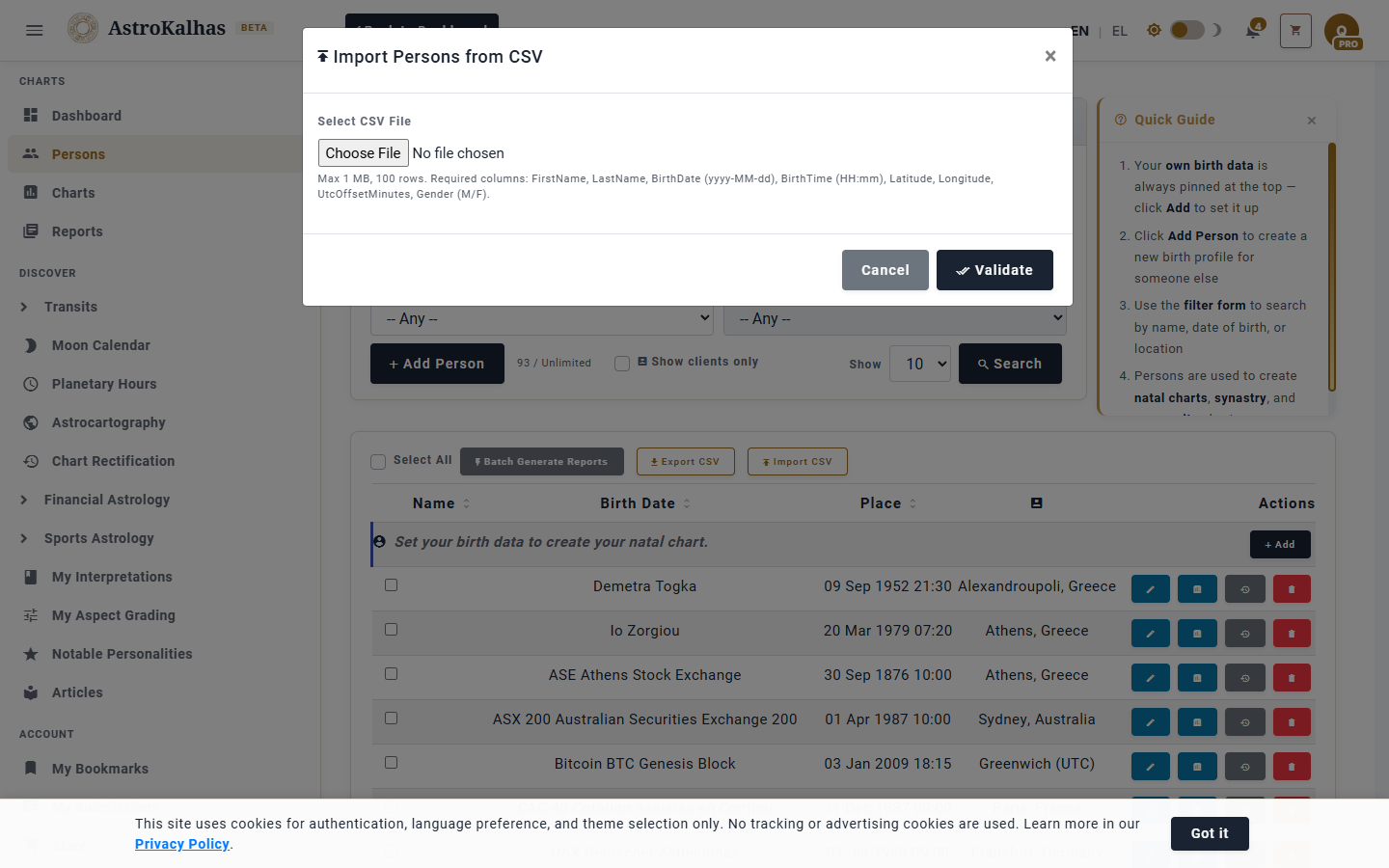
1 The Persons Page — Bulk Toolbar
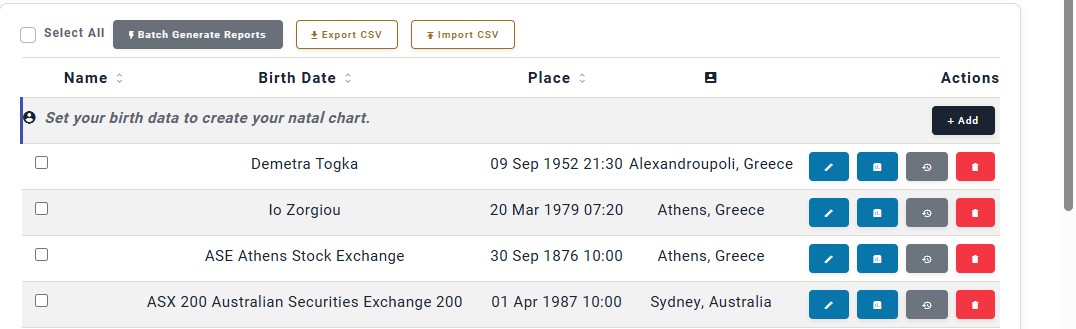
With the Bulk Operations pack active, each person row gains a checkbox and a new toolbar appears above the list: Select All, Batch Generate Reports, Export CSV, and Import CSV. Everything you do in bulk starts here.
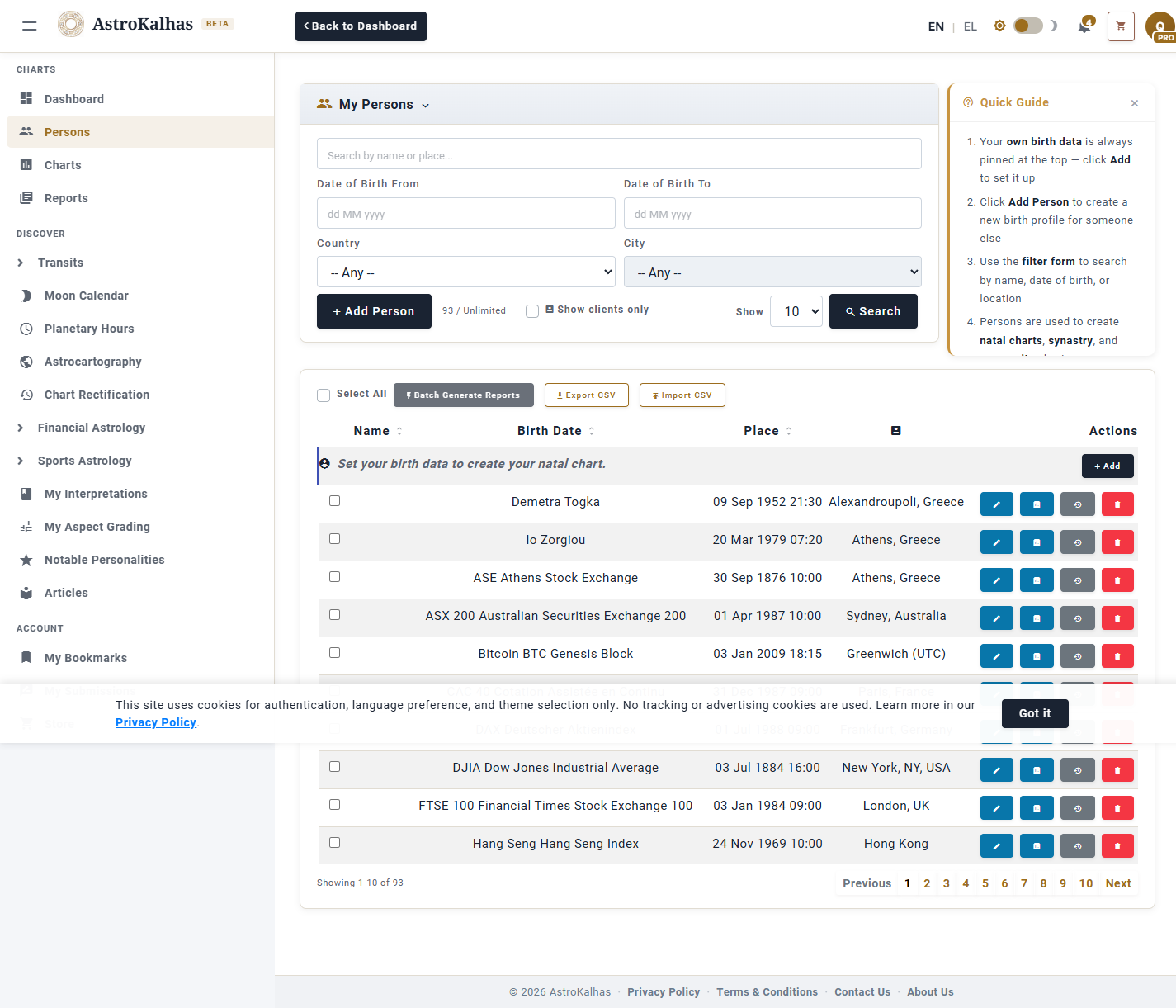
2 Batch Generate Reports
Tick the persons you want to process, click Batch Generate Reports, pick a report type (e.g. Natal) and press Start Generation. The server queues one job per person — up to 25 persons per batch — and runs them in the background.
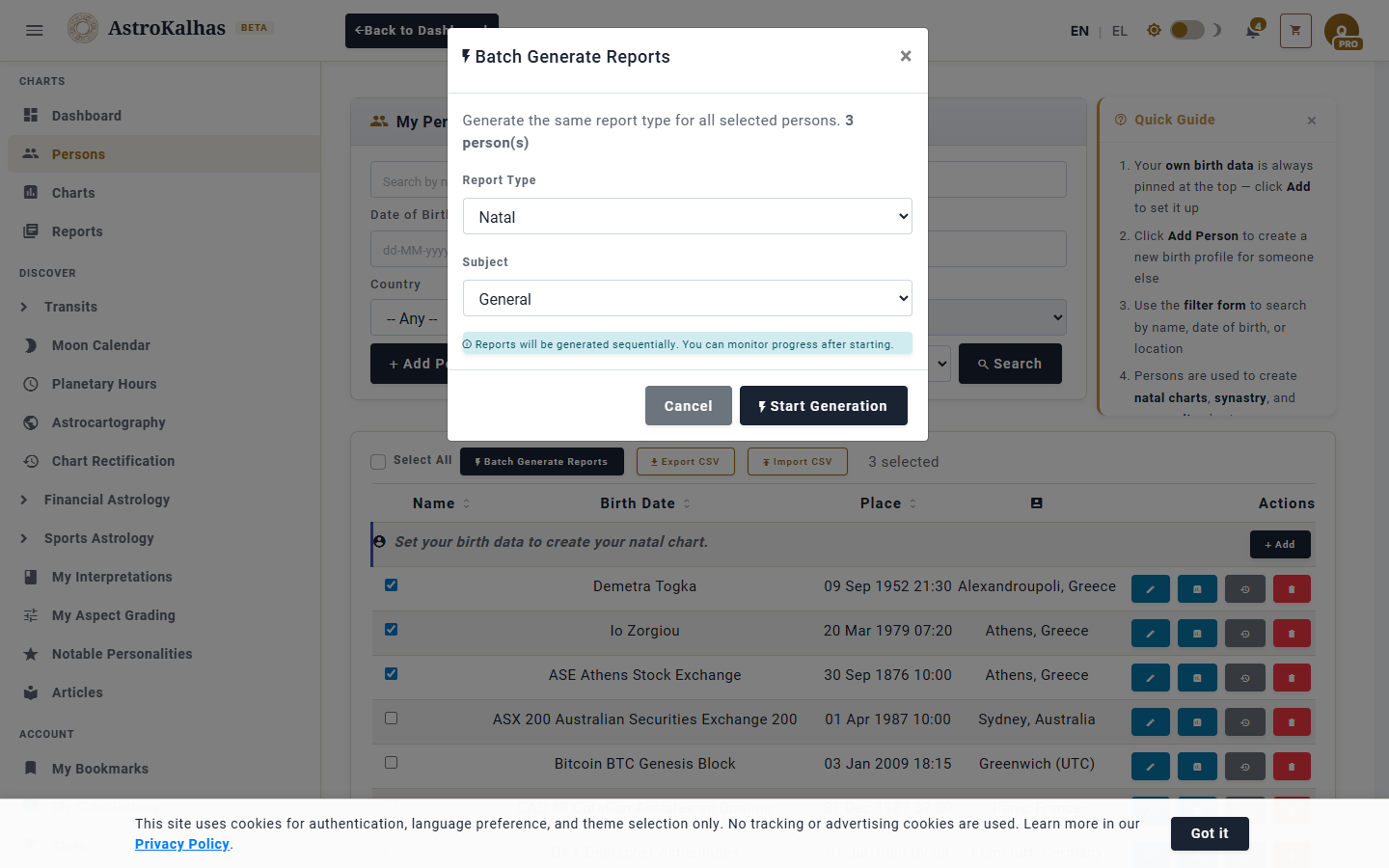
3 Download Reports as a ZIP
Open Reports, tick the ones you want, and click Download as ZIP. All selected reports are rendered to PDF and packaged into a single archive — ideal for emailing a client everything you produced in one go, or filing a month of work in one folder.
4 Export Your Client List to CSV
Export CSV downloads every person on your list as a spreadsheet — birth date, birth time, place, coordinates, gender. Keep a local backup, open it in Excel, or hand it off to another app.
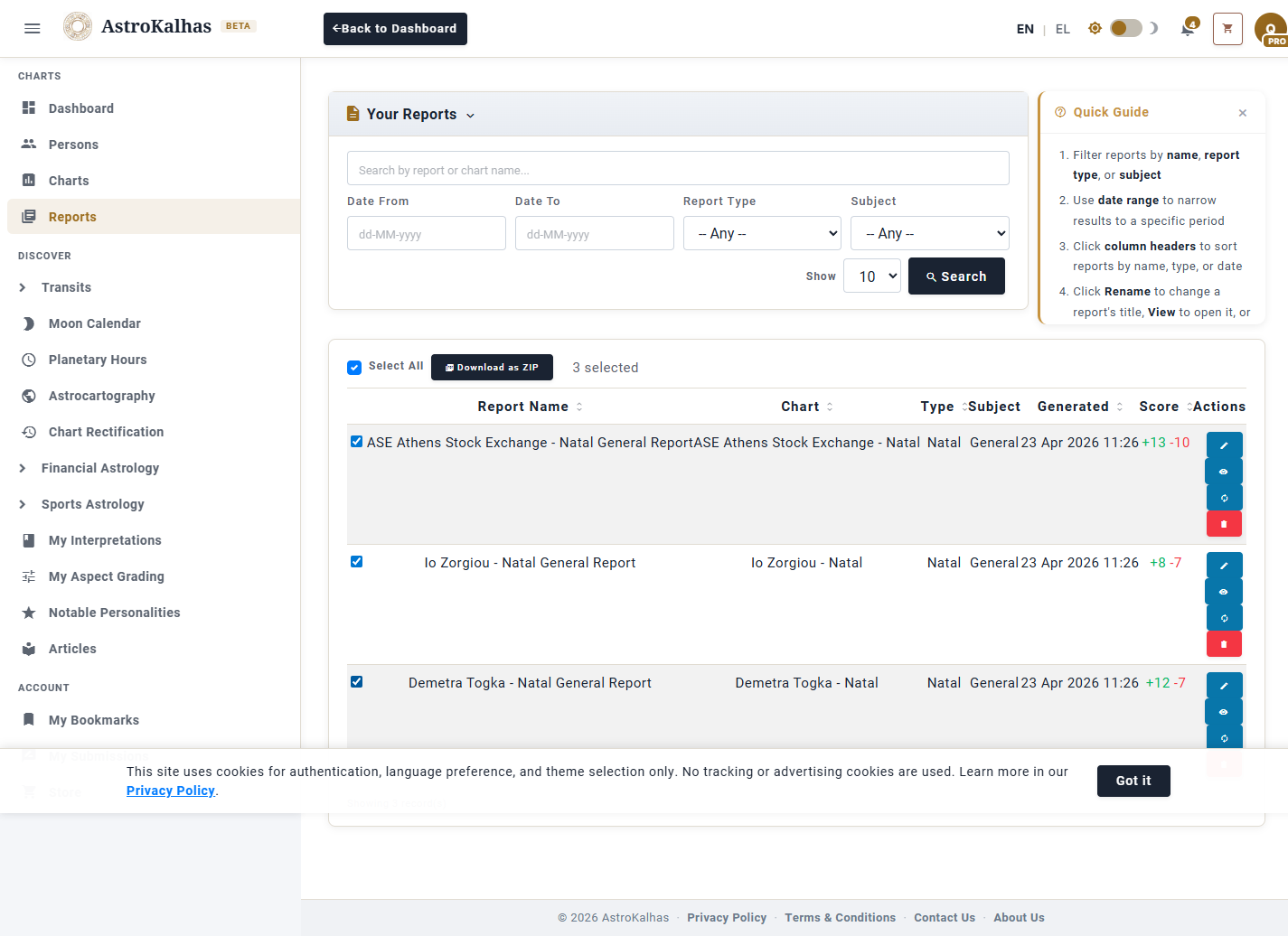
5 Import From CSV
Going the other way: Import CSV reads a spreadsheet of birth data and adds each row as a new person. The validator shows which rows are valid and which need fixing before anything is written to your list.