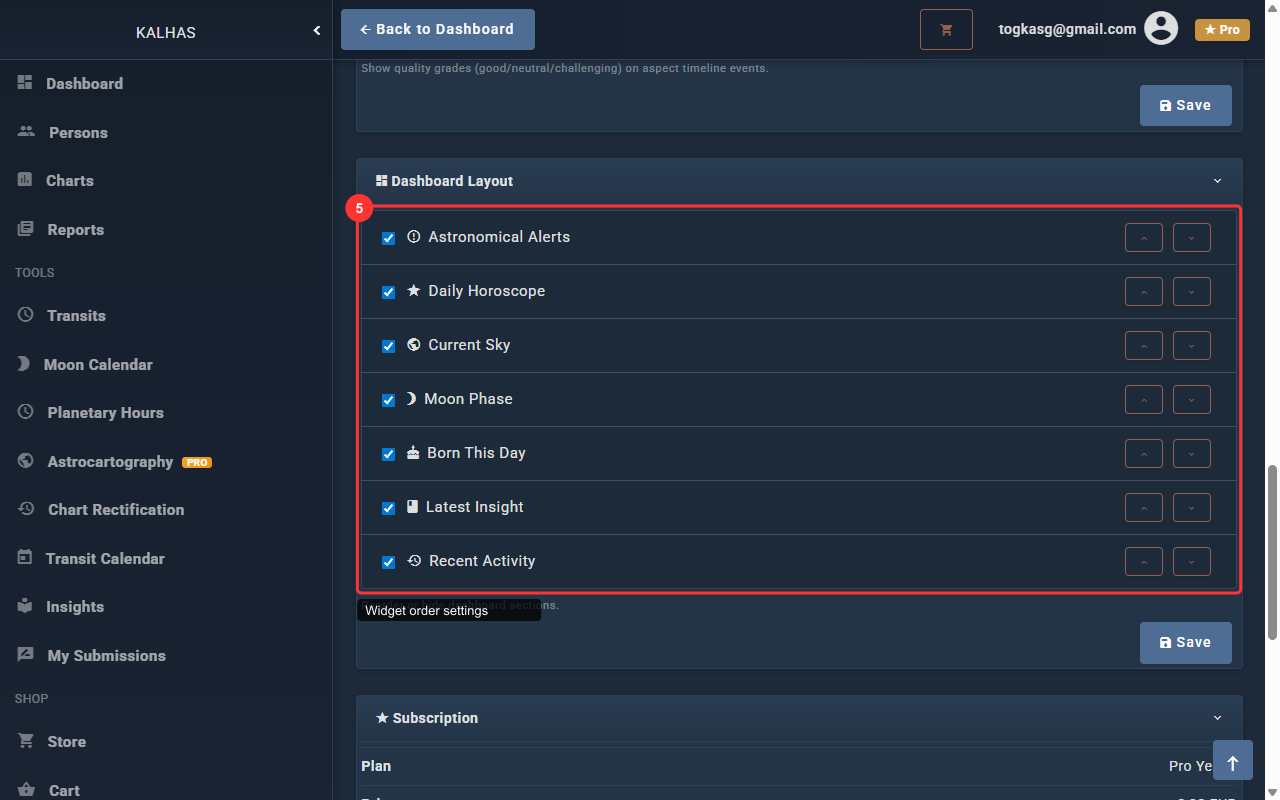
1 Your Dashboard
After logging in, you arrive at the dashboard. The sidebar on the left provides access to all features.
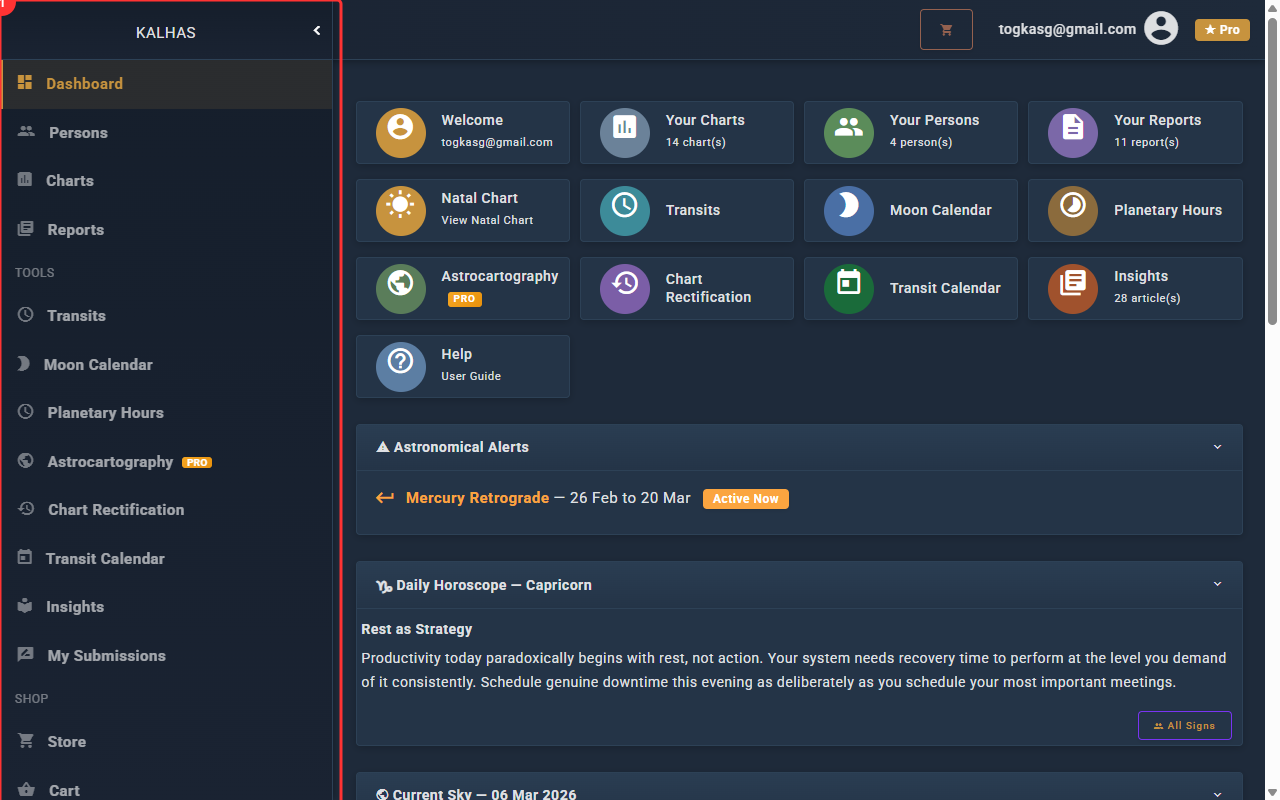
2 Quick Stats & Navigation
The top row displays stat cards that give you a quick overview and act as shortcuts. Click any card to navigate directly to that section:
- Welcome — shows your username, links to Settings
- Your Charts — total chart count, links to Charts page
- Your Persons — total persons count, links to Persons page
- Your Reports — total report count, links to Reports page
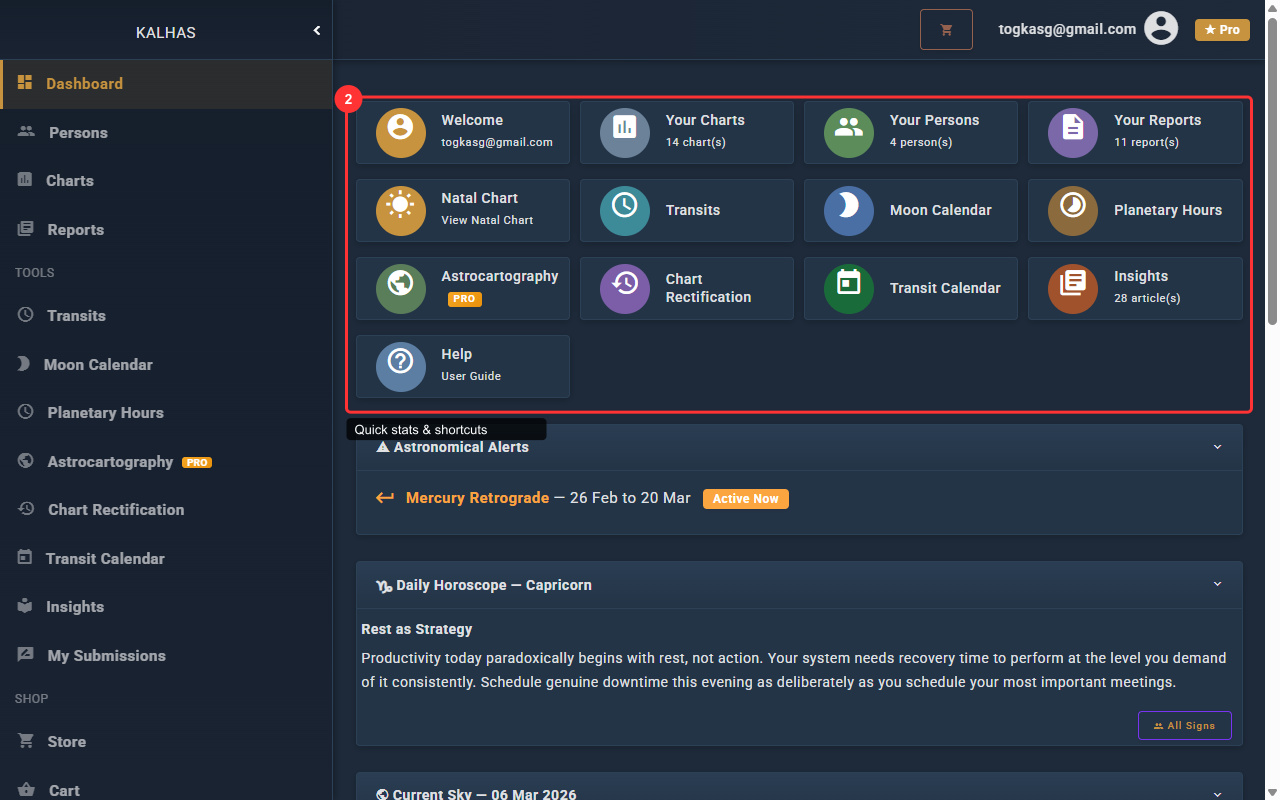
3 Feature Cards
Below the stats, a second row of cards gives quick access to the main features of the application:
- Natal Chart — view your natal chart or create one if you haven't yet (shown with a dashed border)
- Transits — view current planetary transits to your natal chart
- Moon Calendar — daily moon phases and void-of-course periods
- Planetary Hours — traditional planetary hour calculator for your location
- Astrocartography — planetary lines on a world map based on your chart
- Chart Rectification — birth time correction tool
- Transit Calendar — monthly calendar view of transit events
- Articles — articles and educational content about astrology
- Help — guides, FAQs, and tutorials (this page!)
Some features display a PRO badge if they require a paid subscription.
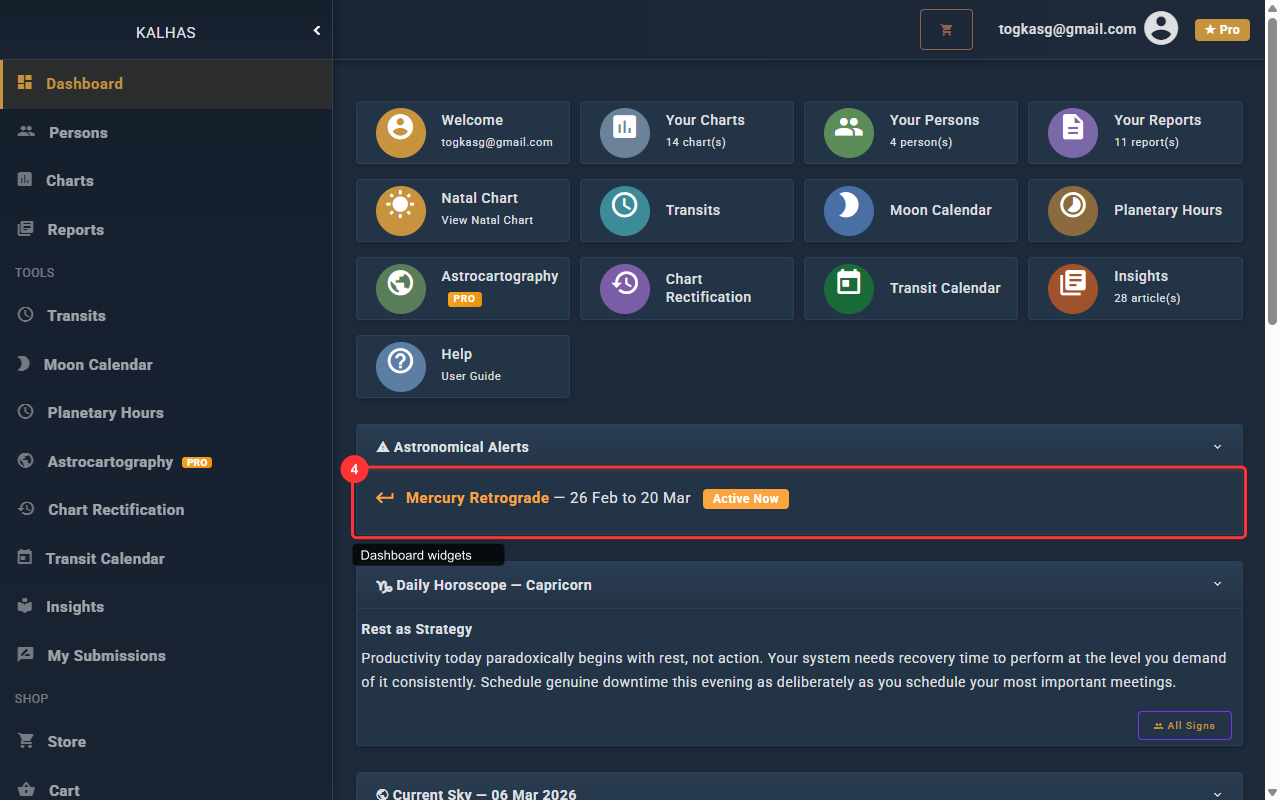
4 Dashboard Widgets
Below the cards, the dashboard displays a series of collapsible widgets. Each widget can be expanded or collapsed by clicking its header:
- Astronomical Alerts — upcoming eclipses, retrogrades, and other major events with "Active Now" badges
- Daily Horoscope — your sun sign's daily horoscope with a link to view all signs
- Recent Activity — your latest charts, reports, and other actions
- Current Sky — live planetary positions with retrograde indicators (℞) and the current planetary hour
- Today's Moon — current moon phase, sign, and void-of-course status
- Born This Day — a famous person born on today's date with their birth details
- Latest Insight — the most recent article or educational content
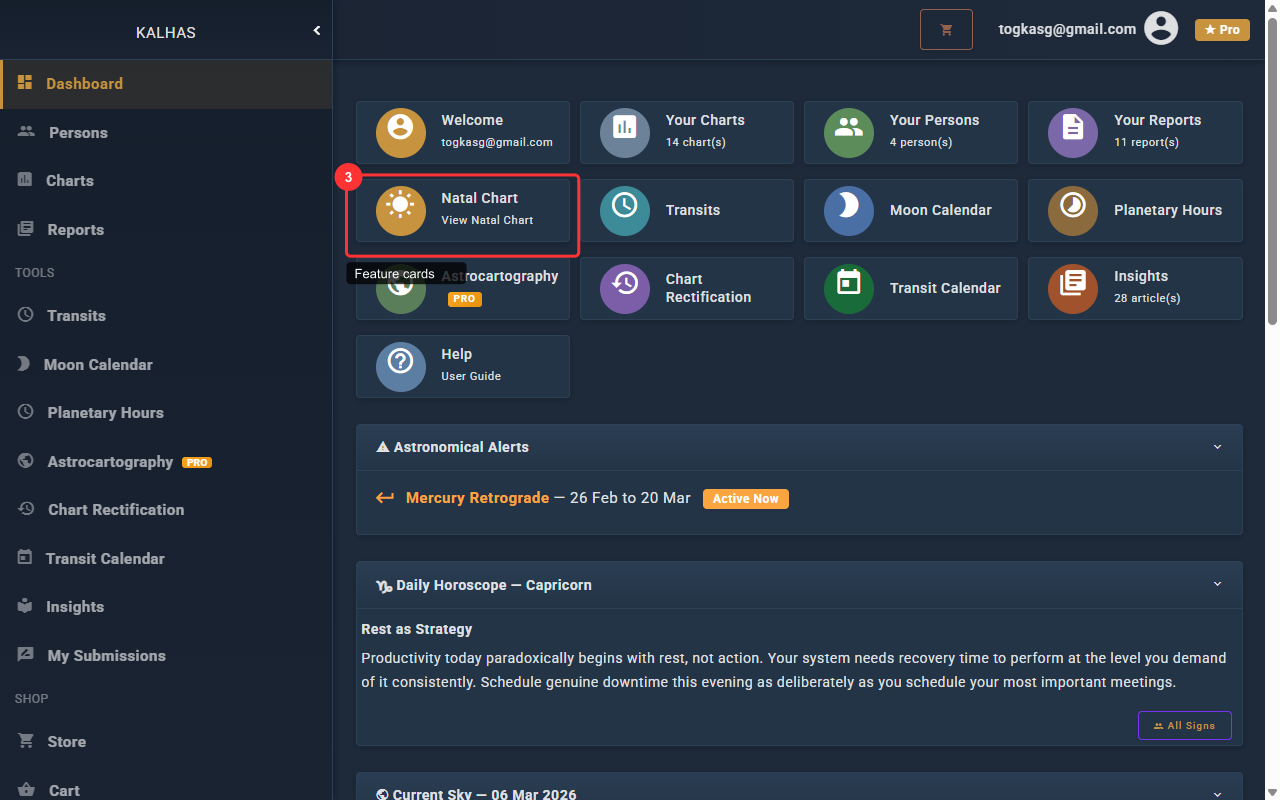
5 Customize Your Dashboard
You can customize which widgets appear on your dashboard and in what order. Go to Settings (click the Welcome card or use the sidebar) and scroll to the Dashboard Widget Order section.
- Use the checkboxes to enable or disable individual widgets
- Use the up/down arrows to reorder widgets to your preference
- Click Save to apply your changes